How to connect DNP RX1HS printer to Snappic.
Here is a comprehensive guide on how to seamlessly connect your DNP RX1HS to Snappic, including the standard free method and premium hardware alternatives.
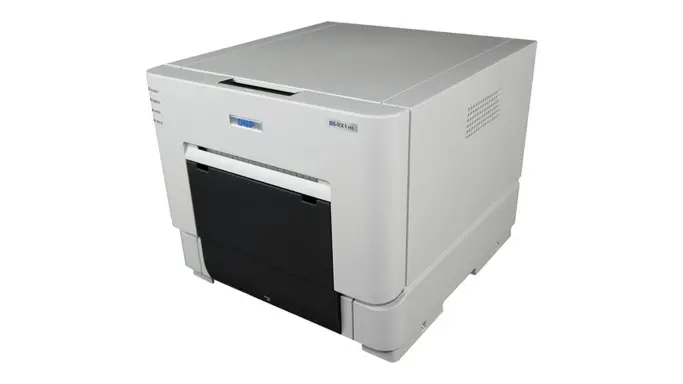
Two different ways on How to connect DNP RX1HS printer to Snappic.
The DNP DS-RX1HS is an industry workhorse, beloved by photo booth owners for its rugged design, low media prices, and large print capacity. Because Snappic operates on iOS (iPad), you cannot simply plug the printer directly into the tablet and hit print. iPads require a network connection or a dedicated print server to communicate with professional dye-sublimation printers.
Method 1: The Snappic Print Server (Standard Setup)
The most common and cost-effective way to run this setup is by using a laptop (Windows or Mac) as a bridge between your iPad and your printer.
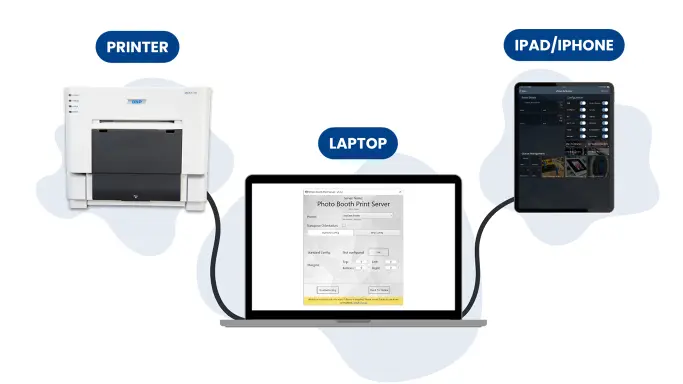
Follow these steps for How to connect DNP RX1HS printer to Snappic:
- Install the Printer Drivers: Ensure your printer driver is installed on your PC or Mac. You can find the latest DS-RX1HS drivers on the official DNP website.
- Download the Snappic Print Server: Download and install the official Snappic Print Server software onto your computer.
- Connect the Hardware: Connect your DNP RX1HS directly to your computer via a standard USB cable.
- Connect to the Same Network: This is the most critical step. Your iPad (running the Snappic app) and your computer (running the Print Server) must be connected to the exact same Wi-Fi network.
- Configure the Print Server: Open the Snappic Print Server app on your computer and select your DNP RX1HS from the list.
- Link the App: Open the Snappic app on your iPad. Within your event settings, navigate to the printing section, and your DNP printer should now be visible and ready to pair.
Pro-Tip for Photo Strips:
If you are printing traditional 2×6 strips, ensure the 2-inch cut option is enabled on your print server. Also, ensure you configure both the “Strip” and “Standard” print types on the server to prevent errors.
Troubleshooting Tip:
If your prints fail to trigger, double-check your printer connections to the PC via USB; sometimes changing the USB slot may help. Additionally, ensure your computer’s anti-virus firewall is not blocking the local network connection.
Method 2: DNP Wireless Connect Module (WCM)
If you want to eliminate the need to bring a bulky laptop to every event, you can invest in a dedicated wireless print server. These small hardware dongles plug directly into your printer and communicate wirelessly with your iPad.
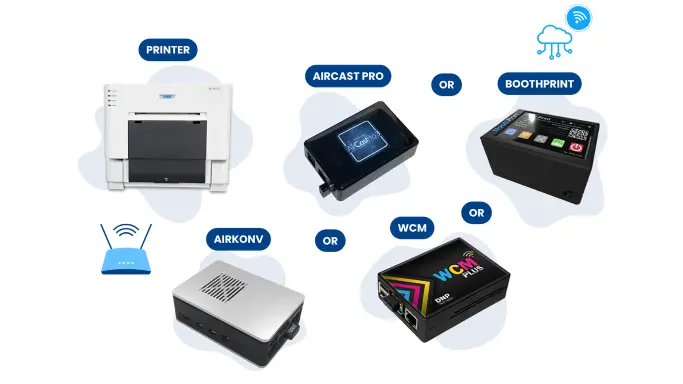
The WCM-2 or WCM Plus is DNP’s proprietary wireless solution.
- How it Works: The WCM connects directly to your DNP RX1HS and creates its own local WiFi hotspot. Your iPad connects to this hotspot to send print jobs.
- AirPrint Integration: It works natively with Apple AirPrint®, meaning you can print directly from iOS apps without needing extra bridging software.
- Configuration: You access the WCM’s admin page through a web browser to add printers and change print sizes. If you are printing 2×6 strips, you must access this configuration tool to ensure that Strip Printing is enabled, otherwise the printer may not be detected properly by Snappic.
Alternative: AirCastPro 3 Wireless Print Server. AirCastPro is a premium, third-party print server highly favored by professional operators for its speed and advanced features.
- Speed Advantage: AirCastPro prints up to 10 seconds faster than DNP’s standard WCM.
- Advanced Features: It supports seamless integration across all major iOS photo booth apps, including Snappic. It also features “Printer Pooling,” which allows you to connect multiple printers together for faster auto load-balancing during high-volume events.
- Color Control: Unlike the standard DNP module, AirCastPro allows you to manually adjust brightness, contrast, and saturation right from the server. This is incredibly useful for correcting the common issue where images captured on a backlit iPad screen print darker than expected.
Common mistakes:
When setting up your DNP RX1HS to communicate with an iPad running Snappic, the transition from a wired PC setup to a wireless iOS environment can trip up even experienced operators. Here are the 5 most common mistakes photo booth owners make during this setup, and exactly how to avoid them to ensure a flawless event.
- Relying on Public Venue Wi-Fi. One of the most frequent setup killers is attempting to run your print server over the venue’s public Wi-Fi network. For the Snappic app to successfully communicate with the Snappic Print Server, your iPad and your computer (or wireless module) must be connected to the exact same local network. Venue networks often have built-in security features that isolate devices, preventing your iPad from “seeing” the printer. The Fix: Always use a dedicated, private router or rely on the local hotspot generated by a dedicated print server (like the DNP WCM). If you are desperate and lack a Wi-Fi dongle, you can use a mobile phone as a hotspot.
- Forgetting to Enable the “2-Inch Cut” for Strips. If you are running traditional 2×6 photo strips, you cannot just select a 4×6 template in Snappic and expect the printer to slice it down the middle automatically. Operators often find that the printer simply spits out an uncut 4×6 or fails to trigger entirely. The Fix: You must explicitly enable the 2-inch cut option within your print server software. If you are using the DNP WCM, you must log into the WCM Admin Page via your web browser (usually at 192.168.4.1) and enable the strip size in the print settings. Incorrect settings here will hinder the printer from being detected properly
- Blocking the Connection with Computer Firewall. If you are using a Windows PC to run the Snappic Print Server, your computer’s built-in security is designed to block exactly the kind of incoming local traffic that the iPad uses to send print jobs. A common frustration is having everything plugged in perfectly, but the printer simply will not trigger. The Fix: You must check and disable your anti-virus firewall. Note that Windows OS actually has three separate firewalls, and all three need to be disabled for the print server to communicate freely with the iPad.
Here are three helpful tutorial links for setting up your photo booth printing workflow:
Snappic’s Official AirPrint Guide: This step-by-step tutorial from Snappic’s Help Center explains how to set up printer sizes and connect the iPad using both the AirCastPro and the DNP WCM.
A Complete Guide to Photo Booth Printing with Snappic: This comprehensive guide covers all the printing options available within Snappic, including wired, wireless (Print Server), and AirPrint setups.
How to Setup the DNP Wireless Connect Module and Hardwire for iPad: A helpful video tutorial that walks through configuring the DNP WCM for your iPad.
More Photo Booth Graphics From Eyelykit

New Prompts for A.I Photo Booths
Professional AI Prompts Built for Photo Booths. Smarter Prompts. Better Faces. Stunning Results.

Face Swap Avatars for A.I Photo Booths
One Photo. Endless Characters. Professional Face Swap Avatars—No Guesswork ever.

Professional Photo Booth Overlays
Where Every Photo Gets the Finish It Deserves. Built to Fit Any Booth, Any Template Orientation.

100 Stunning Photo Booth Poses
Help Guests Look Amazing—Fast. More Laughs. Better Photos. Much Happier Guests.